How To Automatically Shutdown Your Computer Using The Free Software WinMend
Have you been in a situation when you wanted to shutdown your PC after a certain task such as anti-virus check, long download, hard drive defragmentation...etc is finished. Well, you can do that for free using WinMend AutoShutdown.
Note: There are programs that have built-in auto shutdown features but it's not always the case. That's where WinMend AutoShutdown comes in.
Step1: Download and Install WinMend AutoShutdown
Step 2: Start WinMend AutoShutdown and Adjust The Settings Accortding To Your Needs
WinMend AutoShutDown allows you to choose between a few options:
Shut down, Log Off, Stand By, Hibernate
You can run each of the operations daily, on a certain date and hour or after pre-determined time. Choose the option you will benefit the most. For example if you decided to start a hard-drive defragmentation but you have to go tow work you can just set WinMend AutoShutdown to shutdown your computer after a few hours. This will save some energy.
For example is I want to put my computer in a stand by mode after four hours the settings of WinMend Auto Shutdown will look like the picture below.

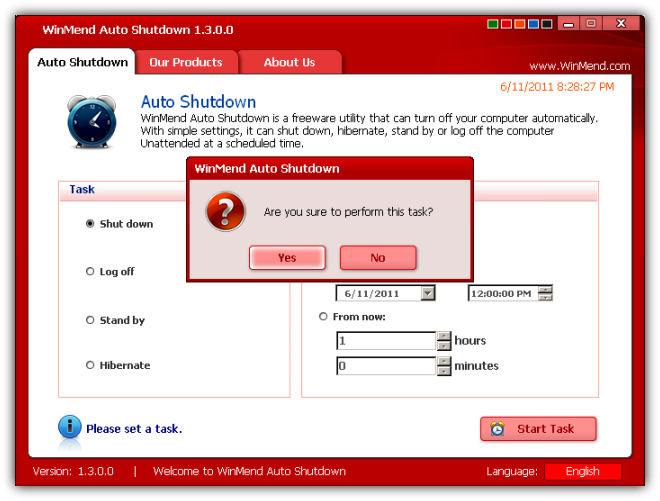
After you are ready with your settings click on Start Task. WinMend AutoShut down will ask you if you are sure - click Yes :).
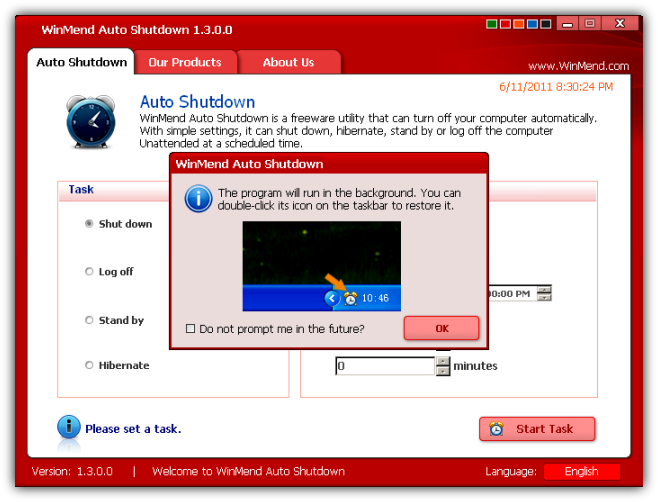
Then WinMendAuto ShutDown will inform you that the program will in the background.
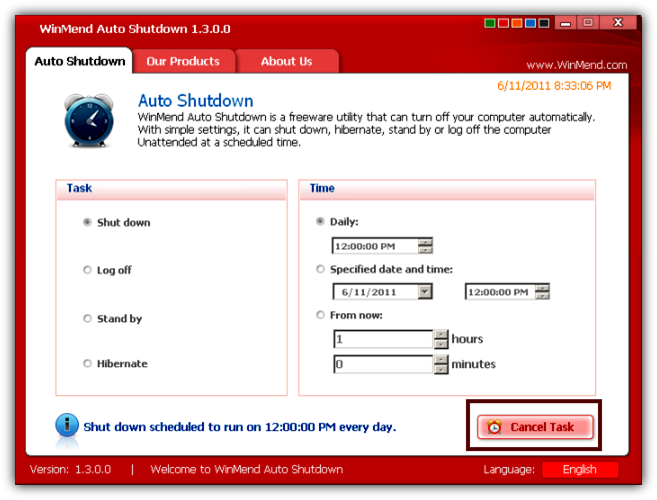
You CANCEL THE TASK by opening the program and clicking on the CANCEL TASK button.
You might also like...